Infographic
Give an idea, process or set of facts a visual structure.


SEO Image AI By SV
Create blog images, infographics, ad banners and social visuals with a clear starting point. Add your topic, shape the look, and decide how text and branding should appear.
Free account available. Features and generation allowances depend on your plan.
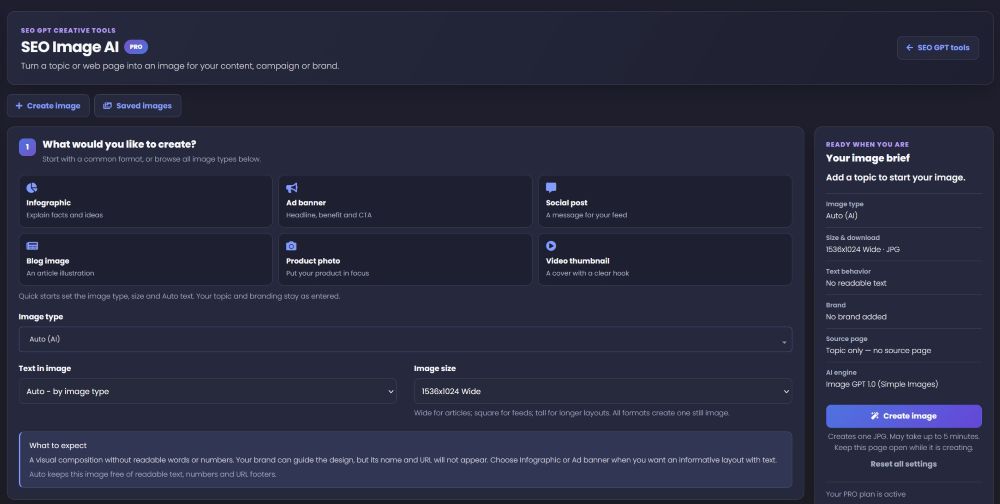
01 / Choose your format
Pick a quick start or explore the Image type selector. Each format produces a still image, including the video-thumbnail option.
Give an idea, process or set of facts a visual structure.
Build a creative around your headline, benefit and call to action.
Give your next feed update a focused visual message.
Illustrate the subject of an article without another generic stock photo.
Explore a product-focused visual for your marketing concept.
Create a still cover image with a clear visual hook.
02 / Give the image direction
Enter an Image topic. Add a Source page URL when an article, product page or landing page can give the image more context.
Only the image topic is required. The other inputs help you be more specific.
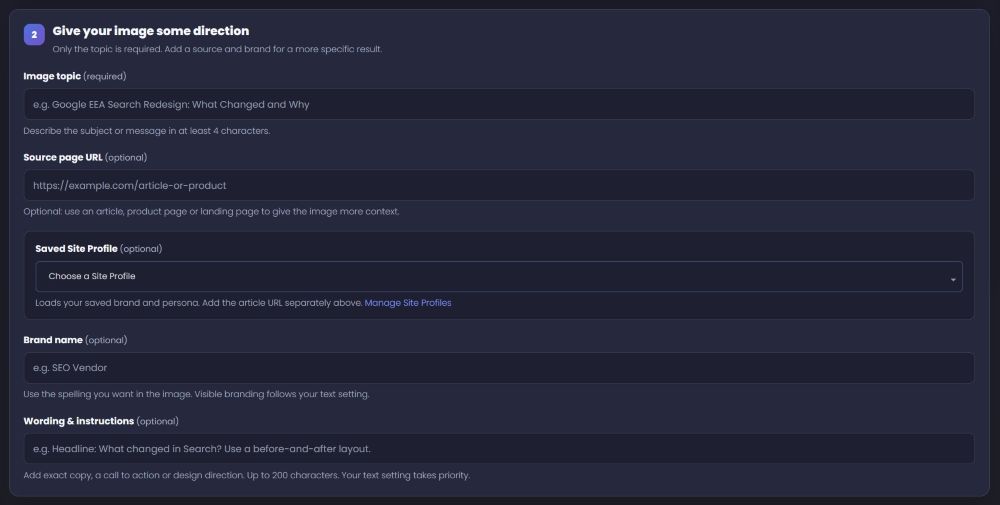
Text & branding
Use Text in image to guide readable text. Auto follows the selected image type; the What to expect panel explains the intended result.
Visual-first creative
For a no-text image, your brand can guide the design without printing its name or URL.
Text-led creative
For an infographic or ad banner, align the text setting with your wording instructions. Review generated text before publishing.
Your text setting takes priority over wording instructions.
03 / Set the look
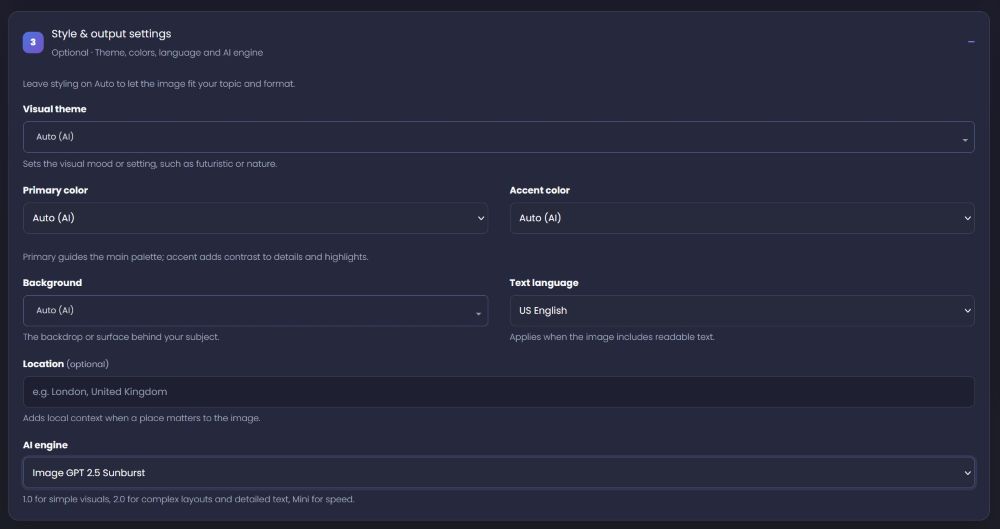
Open Style & output settings for more control, or leave styling on Auto to let the topic and format guide the image.
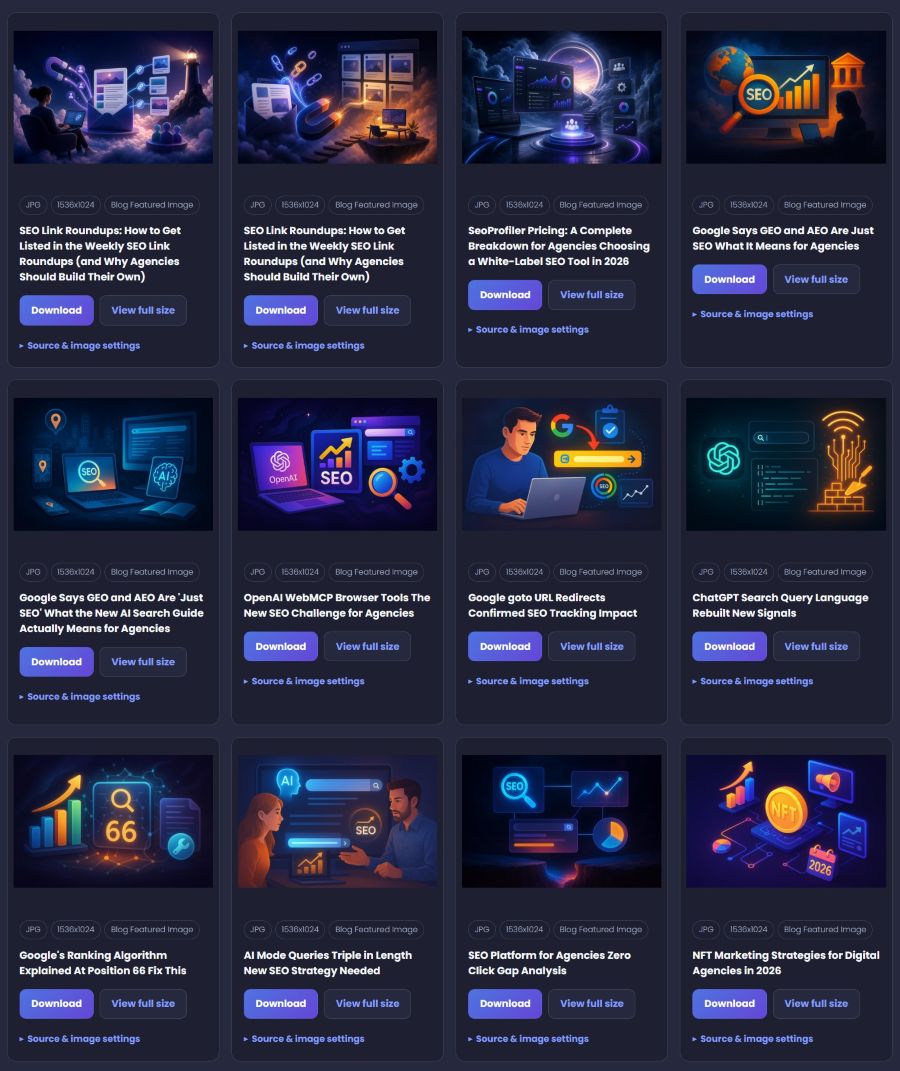
Saved Images
Return to a visual library instead of starting the search again. Saved image cards keep the preview, topic, format and dimensions together.
Choose the Saved Images tab inside the tool.
Made for the work around the image
Give each visual a role in the campaign, not just a place on the page.

Keep previous results close to the next brief. Use the gallery to review what you have already created.

Think about the page, feed or placement before choosing the image size. Review and prepare the download for that channel.

Use the right site profile, brand and source page for the assignment, whether you work in-house or across client accounts.
Product walkthrough
Watch the demo, then try the workflow with a topic from your own content plan.
Try SEO Image AIInterface details in the walkthrough may differ from the current screenshots above.
A few useful answers
What to expect from the inputs, output and saved-image workflow.
Create your free SV accountYou can create a free SV account to get started. Features, available engines and generation allowances depend on your plan. Check your account for current access and limits.
Yes. Enter an Image topic and add the page in Source page URL for context. A Saved Site Profile supplies saved brand and persona information; the specific page URL is a separate input.
Visible branding follows Text in image. A no-text setting can use your brand as design context without printing the name or URL. Check What to expect and review the result before use.
The interface describes wide, square and tall layouts. The examples show 1536 × 1024 wide JPG images. Check Image size and Your image brief for the selected output before creating.
The creation panel advises allowing up to five minutes and keeping the page open while the image is being created. Treat that as guidance rather than a guaranteed completion time.
Open Saved Images. Each card provides Download, View full size, and expandable Source & image settings so you can review both the visual and its context.
No. SEO Image AI creates still images. The video-thumbnail quick start creates a cover visual, not a video or animation.
Review the image and any generated text for accuracy. Use a descriptive filename and appropriate alt text, place the image near relevant content, and optimize file size and responsive display. Creating an image is not a substitute for on-page SEO.
Make your next visual
Start with one clear idea and create a visual for the content you are ready to share.